Amazon Freight Integration
ShopCtrl now supports direct integration with Amazon Freight. This connection allows you to automate the exchange of inbound and outbound logistics data, including automated downloads of shipping documents and upload of shipment statuses.
Overview
The integration uses a secure SFTP-based connection to communicate with Amazon's freight servers. It supports a Sandbox environment for testing and a Production environment for live operations.
1. Connection Settings
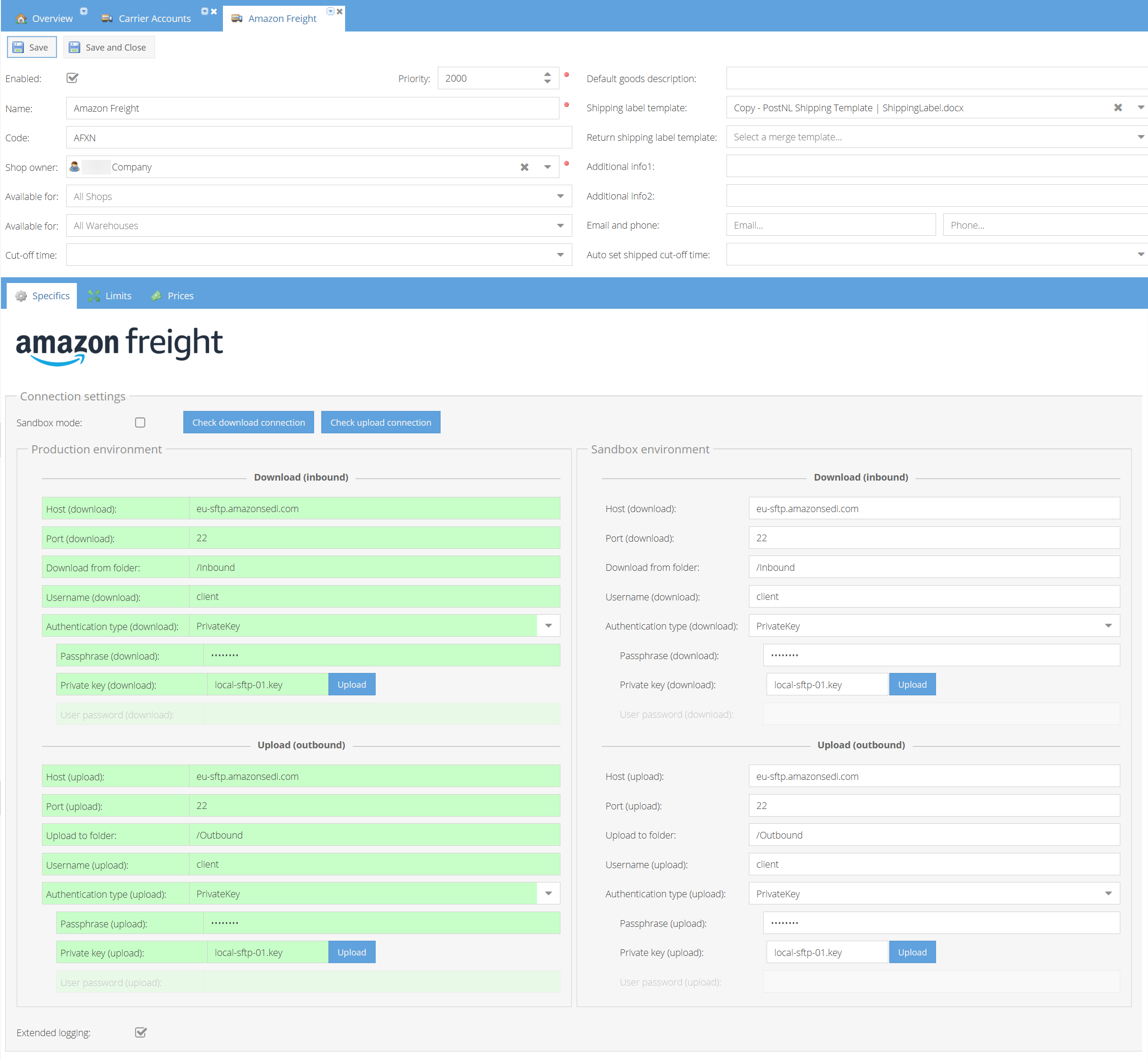
To establish a connection, you must configure both the Download (Inbound) and Upload (Outbound) settings provided by your Amazon Freight representative.
Requirements:
- Host & Port: The SFTP server address and port.
- Authentication: You must provide a Username, Passphrase and a Private Key (.key) file.
- Directory Paths: Specific folder paths for where Amazon places files to be downloaded and where Shopctrl should upload responses.
Setting up the Connection:
- Navigate to Carrier Accounts > Amazon Freight.
- Choose between the Production or Sandbox environment tabs.
- Enter your SFTP credentials.
- Upload your Private Key (.key) using the Upload button next to the key field.
- Click Check Download Connection or Check Upload Connection to verify the credentials.
2. Account Info & Functional Settings
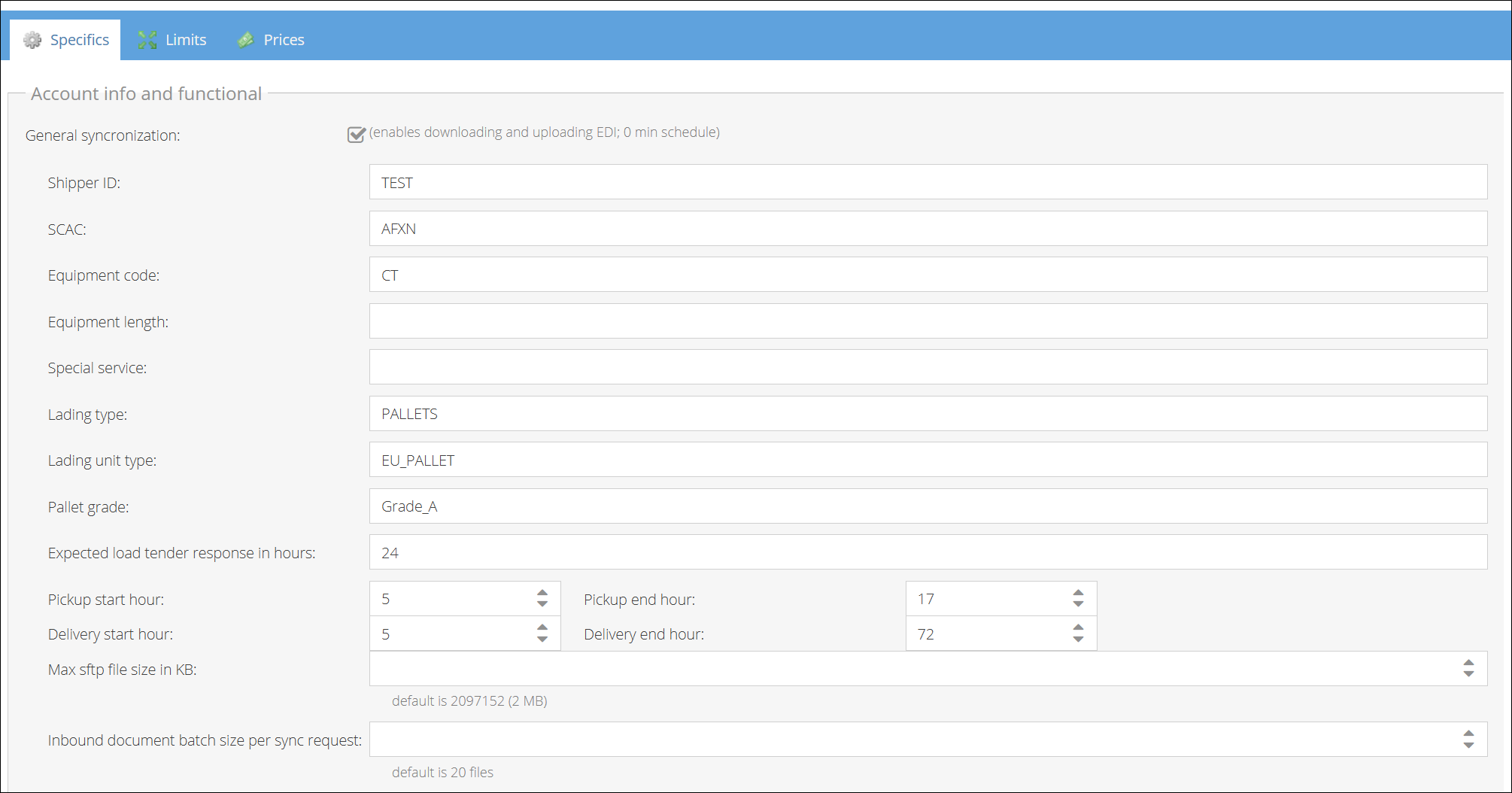
This section defines the default values passed to the Amazon Freight service with every shipment request. These settings ensure your logistics requirements are communicated correctly to the carrier.
- Shipper ID & SCAC: Enter your unique Amazon Vendor identifier. The Standard Carrier Alpha Code (SCAC) for Amazon Freight is typically 'AFXN'.
- Equipment Code (Optional): Specifies the container type.
CT– 13.6m Curtain Trailer (Default)SD– Single Deck Trailer
- Equipment Length (Optional): Enter the specific length of the container equipment if required.
- Lading Type: Define the cargo type (e.g.,
FREIGHTorPALLETS). - Pallet Details:
- Pallet Type: Choose from
EU_PALLET,UK_PALLET, orLOOSE. - Pallet Grade: Specify the quality (e.g.,
GRADE_A,GRADE_B, orGRADE_C).
- Pallet Type: Choose from
- Special Services Codes Use these codes to define specific handling requirements for your shipments:
| Code | Service Description |
|---|---|
| CU | Customer Unload (SLP Customer) |
| CC | Carrier Unload (Non SLP Customer) |
| DH | Drop and Hook |
| EU | Exclusive Use of Equipment |
| H1 | Temperature Protection |
| LL | Loading Service |
| V1 | Drop Yard |
3. Scheduling & Windows
These settings define the timeframes communicated to Amazon for when a truck should arrive and when the goods should reach their destination.
-
Pickup Windows: Defines the operational window for the truck to arrive at your facility.
- Earliest/Latest Pickup Hour: The specific collection date is pulled from your Group Shipment page; these settings define the hours.
- Multi-day Windows: By default, the window is assumed to be within a single day. To set a window that spans multiple days, specify a value greater than 24 for the "End" period.
-
Delivery Windows: Defines the operational window for the arrival at the Amazon Fulfillment Center.
- Earliest/Latest Delivery Hour: Similar to pickup, the date is defined on the Group Shipment page.
- Extended Windows: If the delivery window needs to cover more than one day, specify > 24 hours for the "End" delivery period.

4. Admin Manual Tools
Use these tools at the bottom of the page for manual intervention or re-processing:
-
Demo mode: Enable this to simulate the process. It skips the actual uploading and downloading of files to/from the SFTP server.
-
Download inbound file: Fetch a specific file by entering the remote path and file name.
-
Delete inbound file: Deletes a file on the Amazon sftp server.
-
Create Sync Request for manual inbound file: Manually trigger a processing task for a specific document.
