Trigger Action: Condition
An employee must be assigned to the shop with a Shop Owner Admin role to perform actions referred to in this article.
The Condition action allows you to control the execution flow of a trigger based on entity properties. Instead of writing custom code or creating separate triggers for each scenario, you can add conditions that evaluate at runtime and decide whether the remaining actions should continue or stop.
How it works
When a trigger fires, actions execute in order from top to bottom. When a Condition action is reached, it evaluates one or more rules against the current data. Based on the result, it either allows the remaining actions to proceed or stops the execution chain.
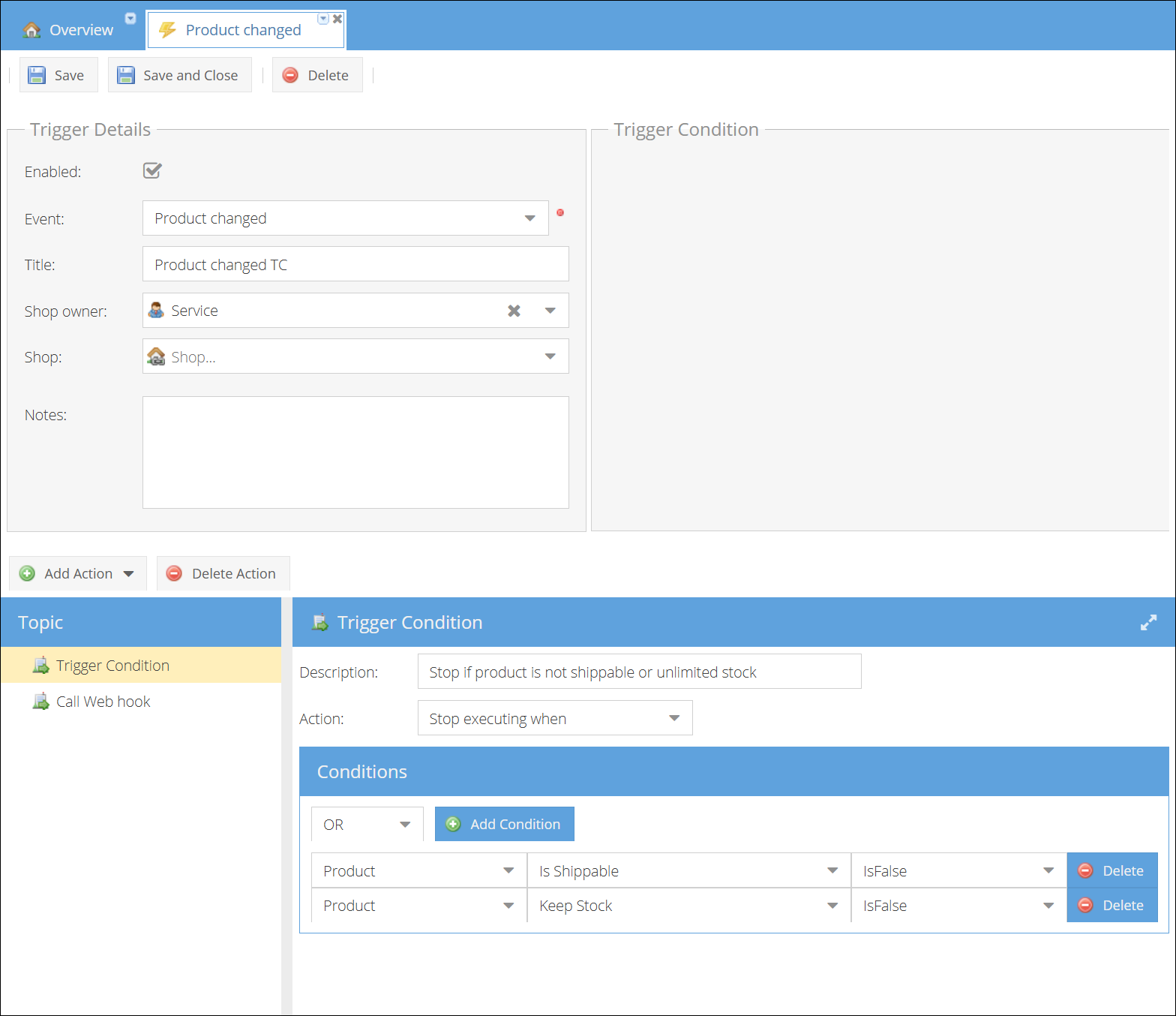
Action mode
| Mode | Behavior |
|---|---|
| Continue executing when | Remaining actions execute only if the condition is met. If not met, execution stops. |
| Stop executing when | Remaining actions are skipped if the condition is met. If not met, execution continues. |
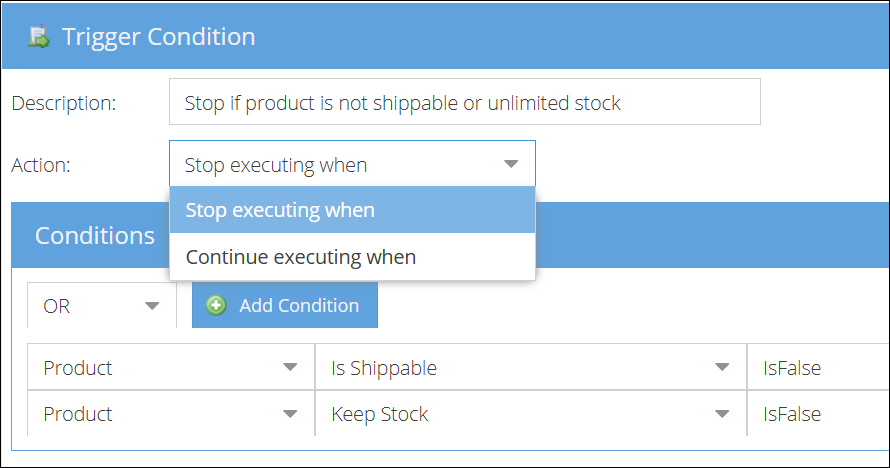
Conditions
Each condition rule consists of:
- Entity — the data object to evaluate (e.g., Order, Customer, Ticket, Product)
- Property — a specific field on that entity (e.g., Main Status, Order Code, Total Due)
- Operator — how to compare (e.g., Equals, Contains, Before, Is Null)
- Value — what to compare against
When multiple conditions are configured, you can combine them with:
- AND — all conditions must be true
- OR — at least one condition must be true
Value sources
The comparison value can come from different sources:
| Source | Description |
|---|---|
| Value (Fixed) | A hardcoded value you type or select from a dropdown |
| Property | Compare against another entity's property at runtime |
| Date Variable | A relative date like "Today + 7 Days" (available for date properties only) |
Available operators
Operators depend on the property data type:
| Data type | Operators |
|---|---|
| Text | Equals, Not Equal, Contains, Doesn't Contain, Starts With, Ends With, In List, Not In List, Is Empty, Is Not Empty, Is Null, Is Not Null |
| Number | Equals, Not Equal, Greater Than, Greater Than or Equal, Less Than, Less Than or Equal, Between, Is Null, Is Not Null |
| Date | Equals, Not Equal, Before, After, On or Before, On or After, Between, Is Null, Is Not Null |
| Boolean | Equals, Not Equal, Is True, Is False, Is Null, Is Not Null |
| Lookup (status, type) | Equals, Not Equal, In List, Not In List, Is Null, Is Not Null |
For Order Parameters, Order Row Parameters, and Product Properties, two additional operators are available:
| Operator | Description |
|---|---|
| Has Param | Checks whether the parameter key exists on the entity (regardless of its value) |
| Has No Param | Checks whether the parameter key does not exist on the entity |
Special operators
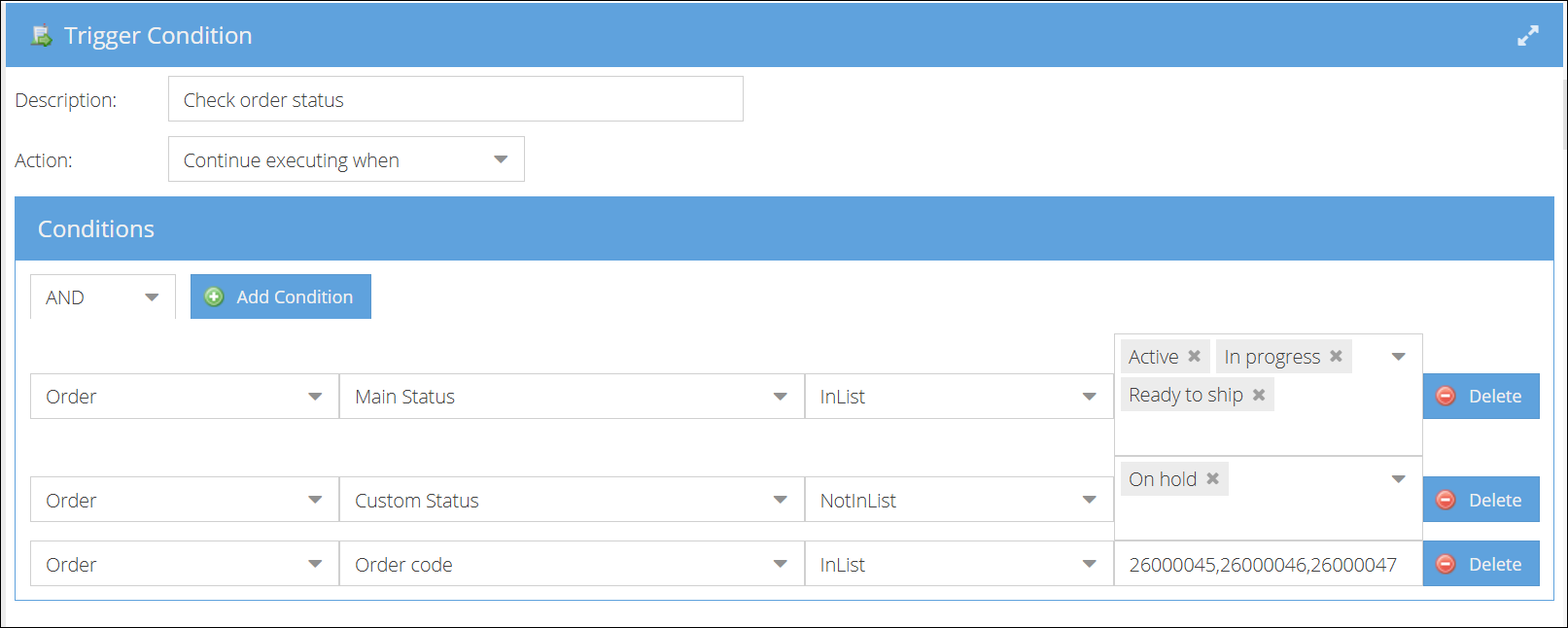
In List / Not In List allows checking whether a value matches one of several options:
- For Lookup properties (statuses, types): a multi-select tag field is shown where you can pick multiple values from a dropdown.
- For Text properties: a text field is shown where you enter comma-separated values (e.g.,
ORD-001, ORD-002, ORD-003).
Between is available for Number and Date properties. It shows two input fields (From and To) to define a range. The condition is met when the value falls within the specified range.

Date comparison mode
When a Date property is selected, a "Date only" / "Date + time" toggle appears. This controls whether the time portion is included in the comparison:
- Date only (default): ignores the time part. Two dates on the same day are considered equal regardless of time.
- Date + time: compares the full date and time. Useful when the exact moment matters.
Entity availability
The condition can only evaluate entities that are available in the trigger context. Which entities are available depends on the trigger event:
| Trigger event | Available entities |
|---|---|
| Order-related events | Order, Customer |
| Ticket-related events | Ticket, Customer, Order (if ticket is linked to an order) |
| Invoice-related events | Invoice |
| Purchase Order events | Purchase Order |
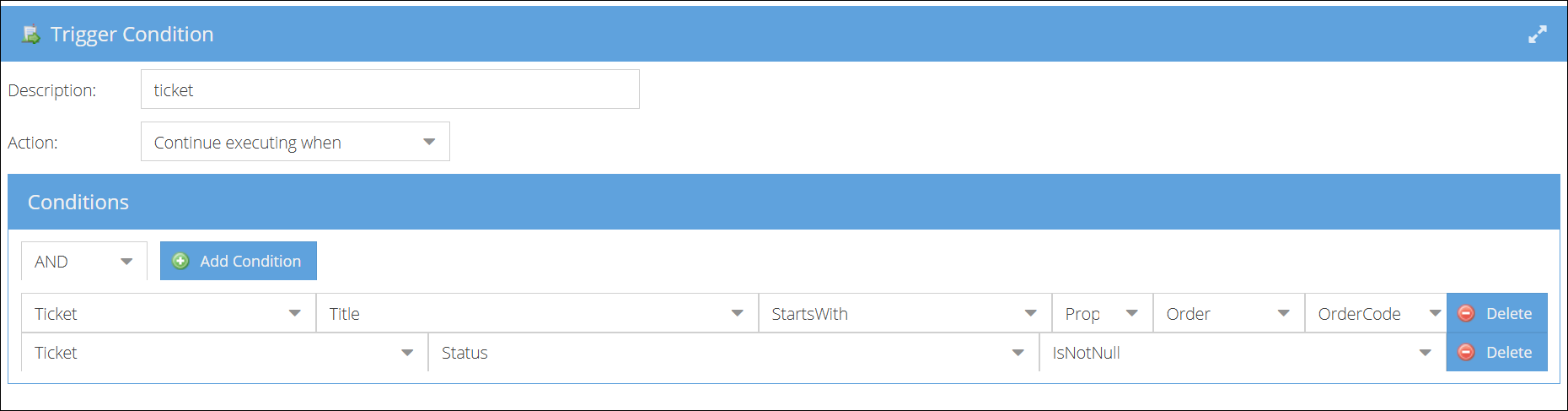
If a condition references an entity not available in the trigger context, the behavior depends on the operator: Is Null will return true, Is Not Null will return false, and any other operator will result in an error.
Workflow examples
1. Skip email for internal orders
Send an order confirmation email only to external customers, not to internal or test orders.
Setup:
- Event: New order added
- Action 1: Condition — Continue executing when Order → Order Code → Doesn't Contain → "TEST"
- Action 2: Send email — Order confirmation template

2. Route high-value orders for review
Create an alert for orders above a certain amount so they can be reviewed before processing.
Setup:
- Event: New order added
- Action 1: Condition — Continue executing when Order → Total Due → Greater Than → 1000
- Action 2: Create alert — "High-value order requires review"

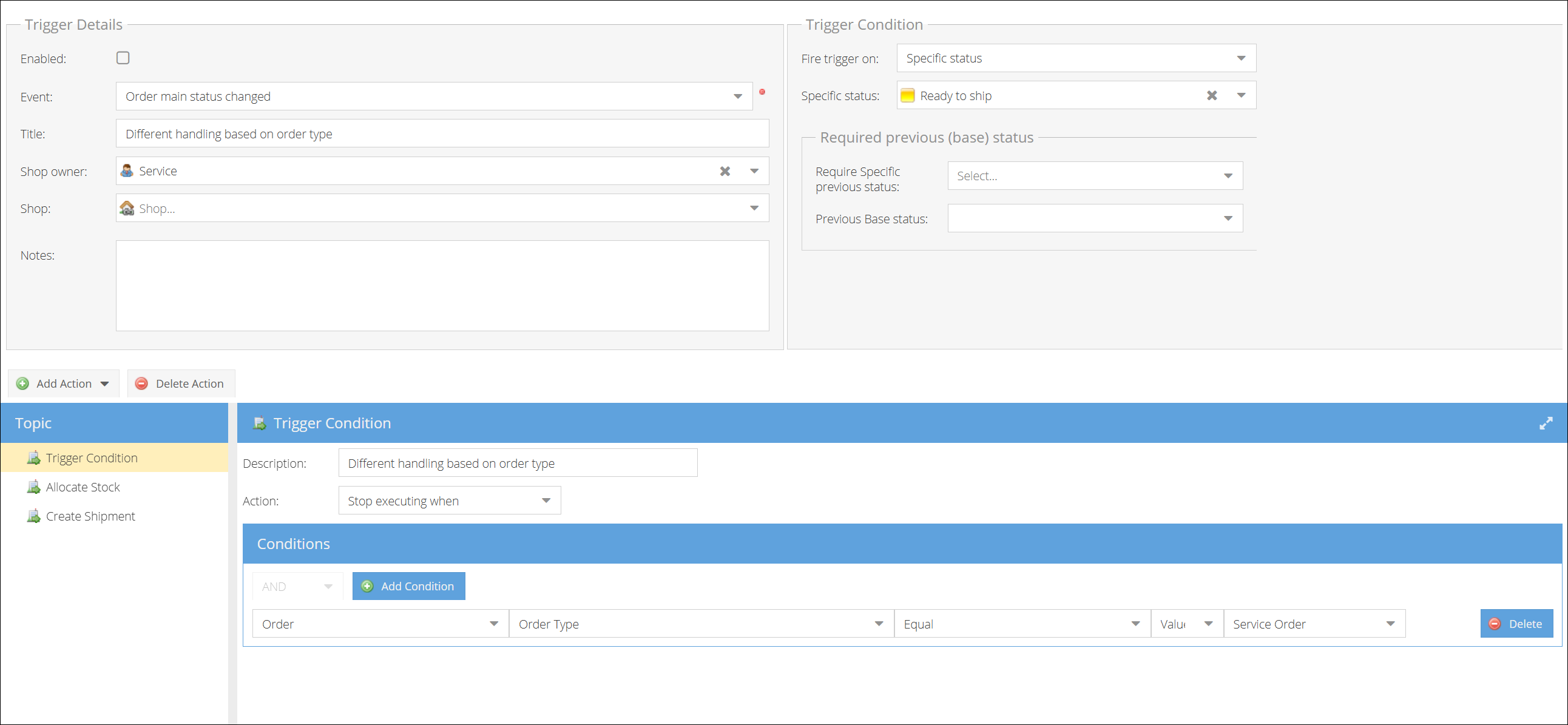
3. Different handling based on order type
Stop the trigger from creating a shipment if the order is a service order (which doesn't need physical shipping).
Setup:
- Event: Order main status changed (specific status: "Approved")
- Action 1: Condition — Stop executing when Order → Order Type → Equals → "Service Order"
- Action 2: Allocate stock
- Action 3: Create shipment
4. Auto-invoice only for orders with a specific parameter
Only create an invoice when the order has a custom parameter "auto-invoicing" set to true. This allows you to control invoicing per order without creating separate triggers.
Setup:
- Event: Order shipment status changed
- Action 1: Condition — Continue executing when Order → Order Parameter → "auto-invoicing" → Equals → "true"
- Action 2: Create invoice
- Action 3: Send Invoice

5. Process only orders in specific statuses
Only continue processing for orders that are in one of the allowed statuses, and skip orders that are on hold or paused.
Setup:
- Event: Order changed
- Action 1: Condition — Stop executing when Order → Main Status → In List → "On Hold, Paused"
- Action 2: Allocate stock
- Action 3: Create shipment
Alternatively, you can use the opposite approach to explicitly allow only certain statuses:
- Action 1: Condition — Continue executing when Order → Main Status → In List → "New, Approved, Processing"
