Mirakl Stock & Price Export
An employee must be assigned to the shop with a Shop Owner Admin role to perform actions referred to in this article.
For the connection and synchronization setup, see Mirakl.
On a regular basis ShopCtrl sends stock and price updates to a marketplace only when something changes on the product. Over time, though, offers can drift out of sync: products are created at different moments in ShopCtrl and on Mirakl, some are not mapped, and some are inactive.
The Stock-price export screen exists to fix those differences and to manually check the health of your marketplace offers. It shows a live comparison between your ShopCtrl stock/price and the current Mirakl offers, and lets you push corrections in bulk or one row at a time.
What you're looking at
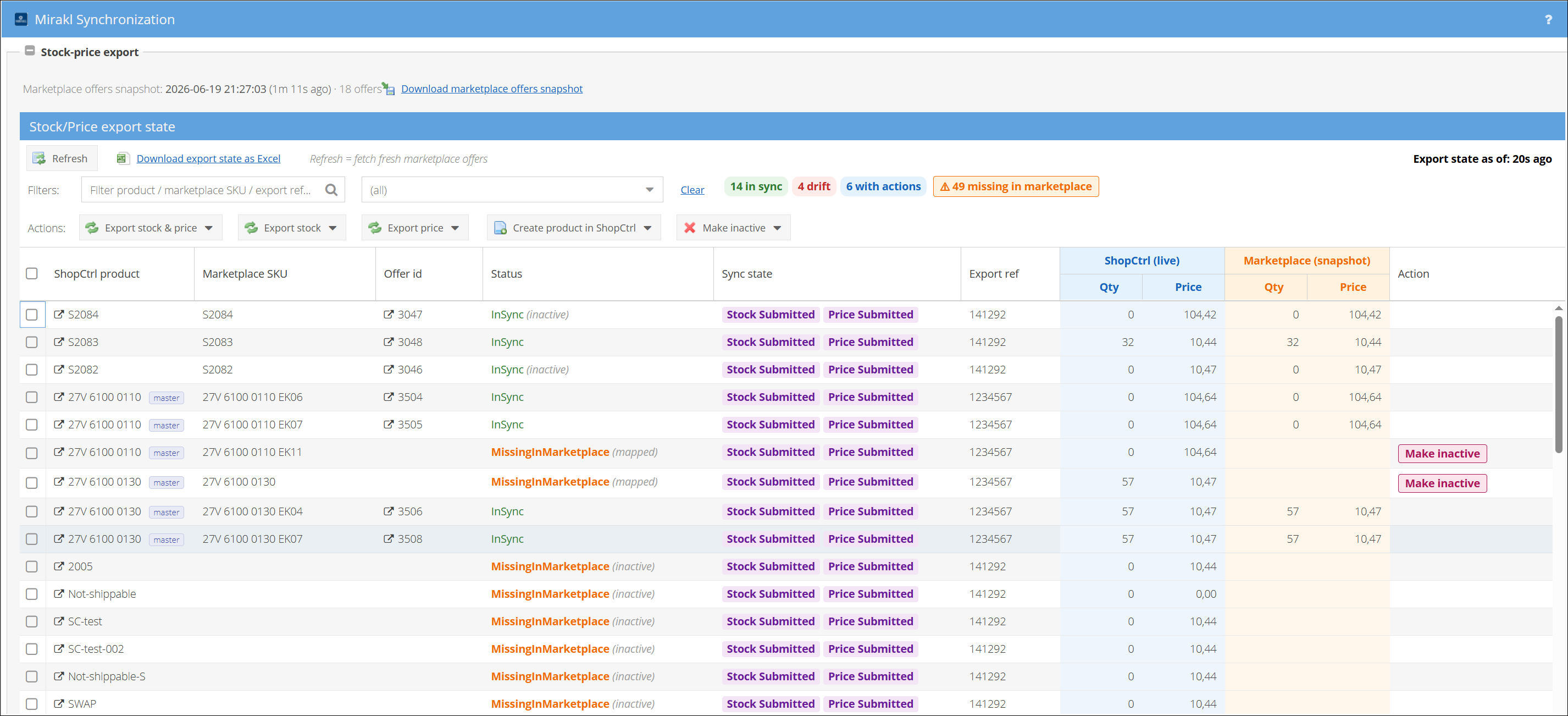
Each row compares one offer: the ShopCtrl side (live) against the last fetched Mirakl snapshot. There is one row per offer.
| Column | Meaning |
|---|---|
| ShopCtrl product | The product, with a small role badge - master, mapped, or standalone. |
| Marketplace SKU | The Mirakl shop_sku for the offer. |
| Offer id | The Mirakl offer id - click it to open the full marketplace offer details. |
| Status | The health of the offer - in sync, or what differs (stock, price, or missing on one side). |
| Sync state | Per-dimension pills - Stock … and Price … - with timestamps in the tooltip. |
| Export ref | Mirakl's import id for the last submitted export. Type it in the filter to pull up the whole batch. |
| ShopCtrl (live) | Qty / Price as ShopCtrl would push them now. |
| Marketplace (snapshot) | Qty / Price as Mirakl currently has them. |
| Action | A one-click fix for the row, when one applies. |
Use Refresh to fetch fresh Mirakl offers and rebuild the comparison, the status filter or text filter to narrow the list, and Download export state as Excel to export everything matching the current filters.
Fixing stock or price differences
If you spot a row where stock or price differs between ShopCtrl and Mirakl, push the ShopCtrl value to the marketplace. This is a forced export - it sends even though the scheduled sync would not (the scheduled sync only fires when a value - stock or price - changes for a product).
There are three ways to export - Export stock & price, Export stock, or Export price - each a split button with a scope menu:
- Selected - only the rows you ticked.
- All drifting (DIFF) - every row currently out of sync.
- All mapped (ALL) - every mapped row, in sync or not.
Which buttons are enabled follows the shop's Product stock management (stock) and Shop product management (price) settings.
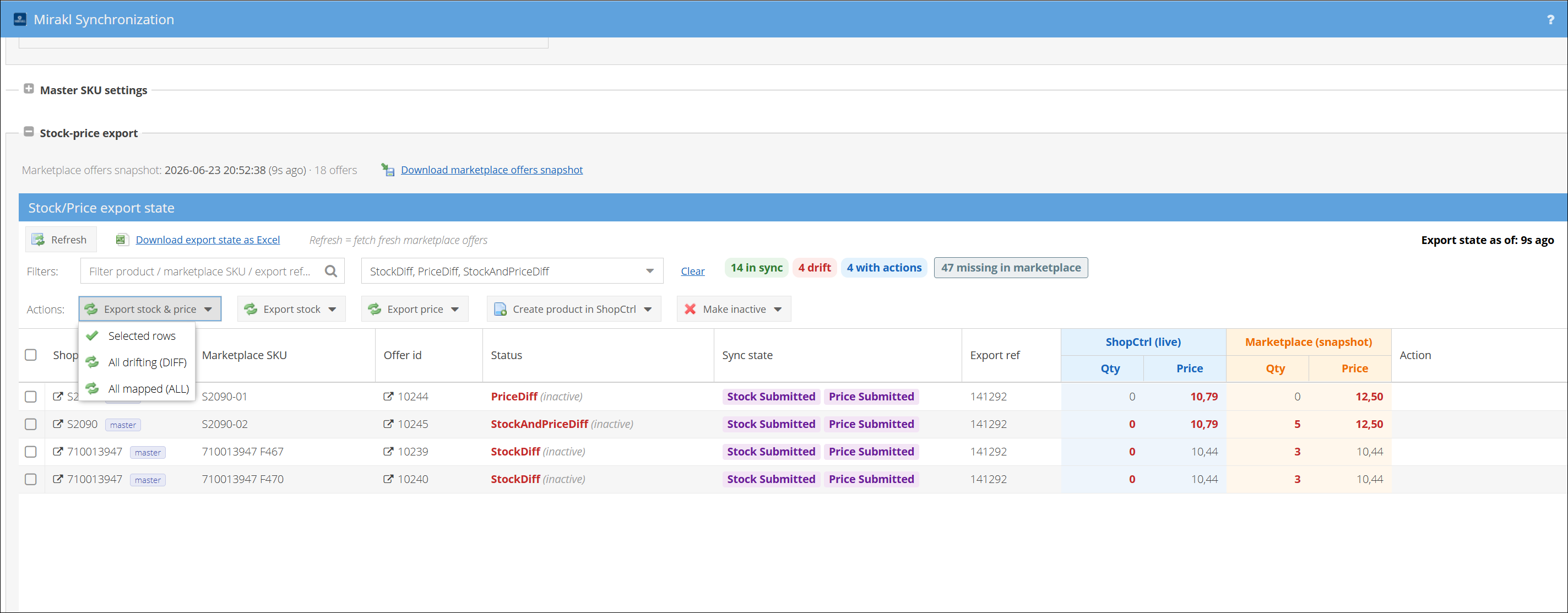
After a push, the Export ref and Sync state columns tell you the import id and whether Mirakl accepted it.
Products that exist on only one side
In ShopCtrl, products are published per shop (a PSP - product selection product). Sometimes too many products land in the selection - they exist on your other marketplaces but not on this one - and they show up here as Missing in Marketplace.
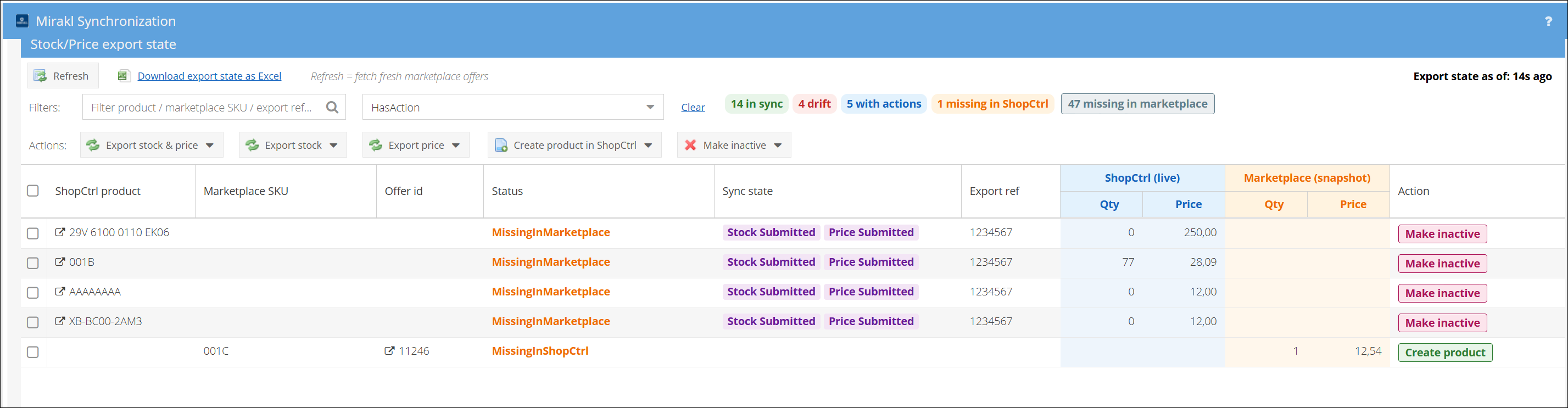
- If the product genuinely does not belong on this marketplace, Make inactive. It stops exporting and no longer clutters the table.
- If it should be on the marketplace, simply create the offer manually on Mirakl. With the next sync it will be matched to the ShopCtrl product and become mapped.
The reverse can also happen: if a ShopCtrl product shows an inactive badge but you can see the offer exists on Mirakl, activate it manually in ShopCtrl so it starts exporting again.
Finally, if Mirakl has an offer with no matching ShopCtrl product, use the row's Create product action to create one so it becomes mappable.