Mirakl
An employee must be assigned to the shop with a Shop Owner Admin role to perform actions referred to in this article.
Mirakl integration connector allows you to import and accept orders, update Mirakl with shipment information, and synchronize your stock levels. Export of stock levels is performed automatically in the background, with scheduled requests. After the change in available product stock is registered, the corresponding Mirakl product offer is updated with a new value.
Products in ShopCtrl are mapped to Mirakl product by Offer SKU, which is the product code in ShopCtrl. This way, a product offer in Mirakl with SKU "S2081", is mapped to a product in ShopCtrl with the same product code "S2081".
Setting up integration with Mirakl
To set up the integration, you first need to create an API key for your production environment. To do this, please follow the steps in this Mirakl support article: Generating or retrieving your API key.
Setting up Mirakl synchronization in ShopCtrl
Before enabling synchronization with Mirakl, please set up the corresponding shop currency, VAT tariffs, and payment types for your ShopCtrl shop.
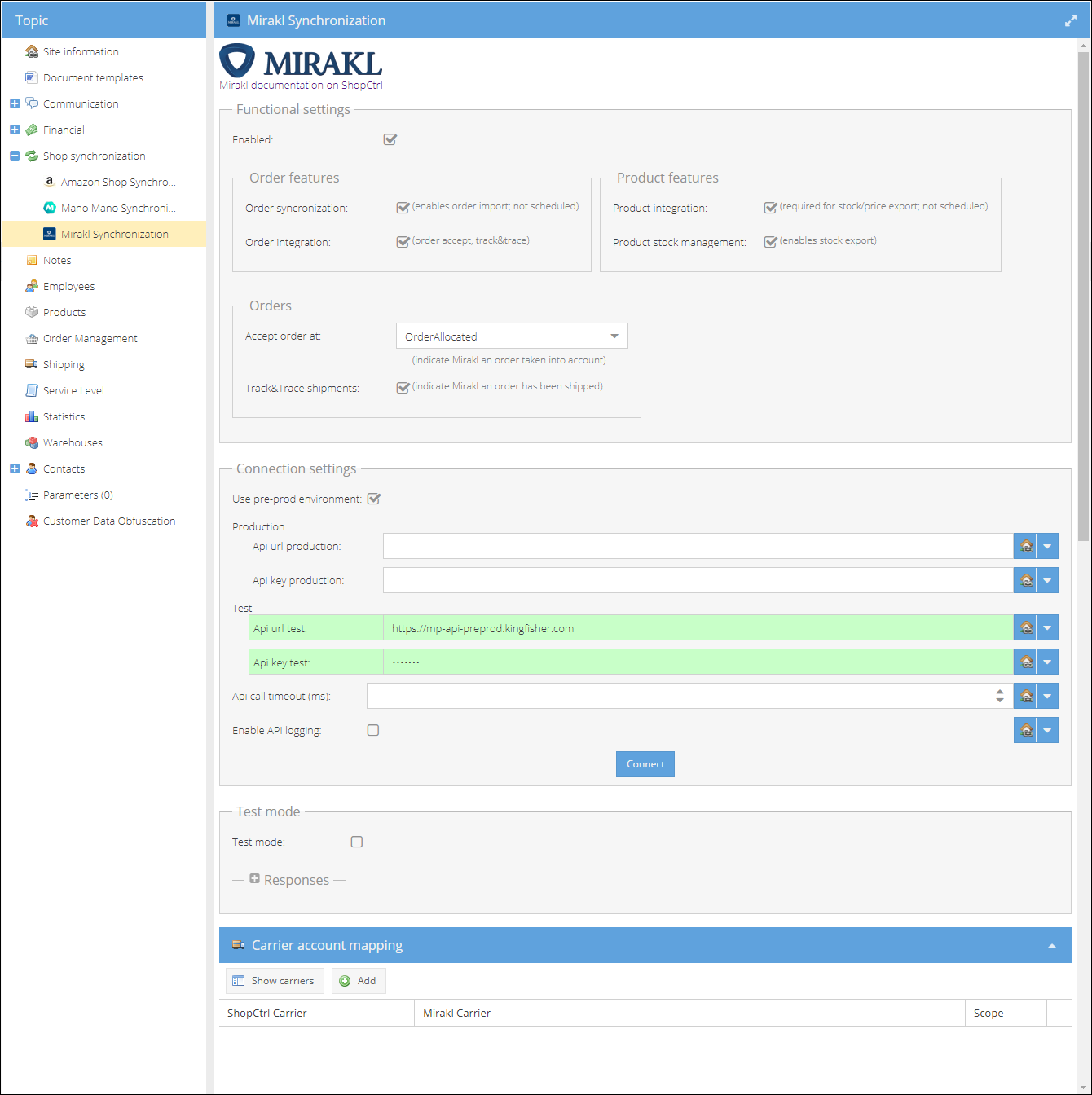
To set up synchronization with pre-prod Mirakl environment in ShopCtrl:
- Log in to your ShopCtrl account as a user with the Shop Owner Admin role.
- In the navigation menu, select Configuration > Shops to open the list of shops created.
- Select a shop for which you would like to set up Mirakl synchronization and click Edit to open shop settings.
- Within the topic menu, select Shop synchronization > Mirakl Synchronization.
- First, within Connection settings > Test (highlighted green) enter the API key test generated for the pre-prod environment. The url link is already pre-filled.
- Click the Connect button to test the connection. If all credentials were provided correctly, a pop-up window would open informing that the connection was successful. Otherwise, please check if the credentials provided are valid and belong to the pre-prod environment.
- (Optional) You can determine in ms the custom interval between API calls. Or leave the field blank to set API call timeout to default 5 minutes.
- (Optional) Enable API logging to check the detailed logs on each API call performed.
- Move back to the top of the pane to the Functional settings - Order features section. Check the features you would like to use:
- Orders synchronization - new orders will be imported to ShopCtrl.
- Order integration - a setting required for accepting orders and sending T&T info to Mirakl
- On the Product features pane:
- Product integration - to enable the stock/price export feature
- Product stock management - enables stock export to Mirakl
- On the Orders section decide on the moment ShopCtrl will indicate to Mirakl the order has been accepted. Currently there are several options available:
- Order Import - the moment an order gets into ShopCtrl,
- Order Allocated - the moment stock is allocated to ship the order. In case there is not enough stock, the sync request won't be created till order is fully allocated.
- Order Shipped - the order is accepted at Mirakl the moment the shipment in ShopCtrl is marked as shipped.
- Track&Trace shipments - once the order is marked as shipped in Shopctrl, an automatic request to update tracking info is created. The Mirakl shipment will be automatically updated with the tracking code and Url, and order will be marked as shipped.
- Carrier account mapping. Here you can map the Mirakl carrier codes to the ShopCtrl carriers. This mapping is used for auto-updating tracking information to Mirakl.
- Please click Show Carriers to load the list of Mirakl carrier identifiers. Please copy only the carrier codes for the mapping (the carrier names are provided for reference only).
- Add the mapping lines to ShopCtrl Carriers to provide the correct tracking information to Mirakl.

- Enable the synchronization at the top of the Functional Settings pane.
- Click Save or Save and Close to apply changes to the shop.
Stock and price export
To compare ShopCtrl stock/price against the current Mirakl offers and push corrections in bulk or per row, see Mirakl Stock & Price Export.
Master-SKU Map
The Master-SKU map drives several Mirakl offers from a single ShopCtrl master product. It is built for the case where the master product lives in ShopCtrl and its variants are created as separate offers on Mirakl, each identified by a colour code - a short suffix of letters and digits added to the master SKU.
When stock and price are updated, the value is sent from the master product to all of its mapped colour codes.
This is a specific, opt-in feature. By default it is disabled and the table has no records - the connector then maps each offer to the product with the same SKU.
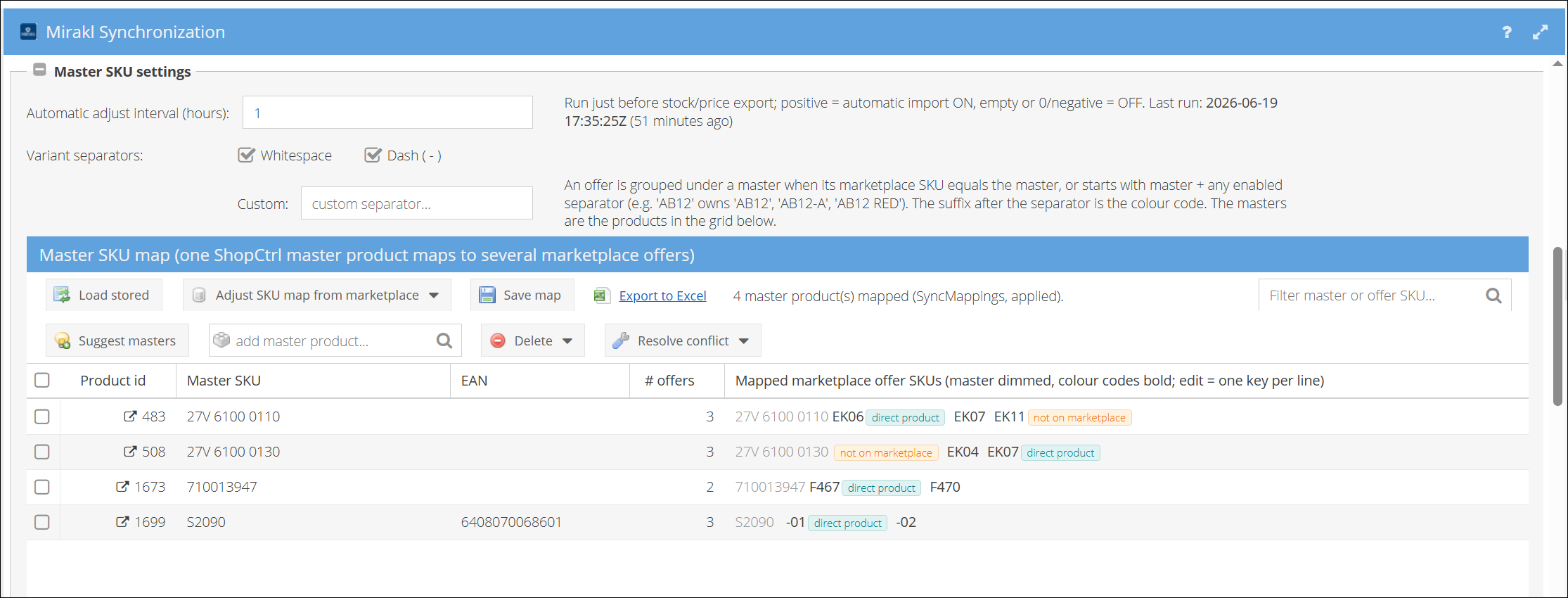
The grid shows the master SKU (the ShopCtrl product's own code) and the mapped marketplace offer SKUs it drives - the master's own code first, then its colour-code variants.
Adding new masters and colour-code mappings
When new masters or colour codes exist on Mirakl but are not yet in the table:
- Click Adjust SKU map from marketplace → Merge new offers. This pulls the newly-seen Mirakl offers in, keeping all existing mappings - nothing is removed.
- Click Suggest masters. The new possible masters and their colour codes are loaded into a separate review list first - they are not in the map yet.
- Review the suggestions and add selected or add all. Only the entries you add are moved into the map table.
- Click Save map to store the result.
Possible problems and solutions
By default the master is the source: it exports stock and price to all its colour codes. An offer key may show a small badge when something needs attention - click the badge to apply its fix.
| Badge | Problem | Solution |
|---|---|---|
| 🟠 not on marketplace | The mapped offer no longer exists on Mirakl (stale mapping). | Click to remove the stale key. |
| 🔵 direct product | The offer also exists as its own standalone product. You want to override the default and let that product - not the master - drive this colour code. | Click Use direct product as source to promote it. The direct product then owns the offer and the master no longer drives it. |
| 🔴 missing product | The master product for this row no longer exists in ShopCtrl. | Click to delete the dead row. |
| ⚠ conflict | The offer is mapped to a master and matches a different standalone product - you must choose the source. | Click Resolve conflict and pick the source. |