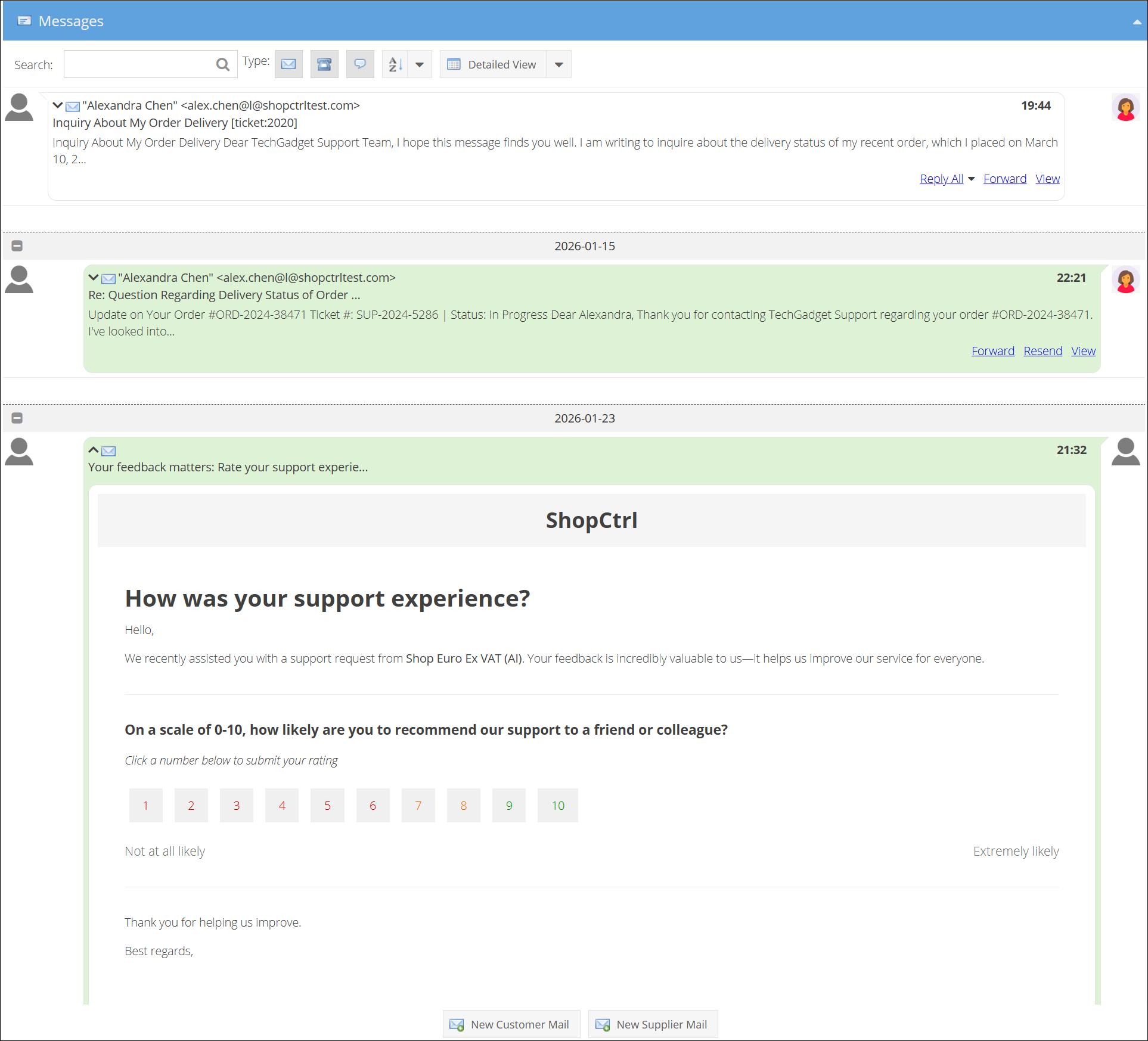
Configure Net Promoter Score (NPS) Feedback for Your Shops
This guide provides step-by-step instructions for shop administrators to configure the automated Net Promoter Score (NPS) feedback system. Once activated, this system sends feedback requests to your customers after their support tickets are resolved, helping you measure and improve customer satisfaction.
Configuration Guide
An employee must be assigned to the shop with a Shop Admin role to perform actions referred to in this article.
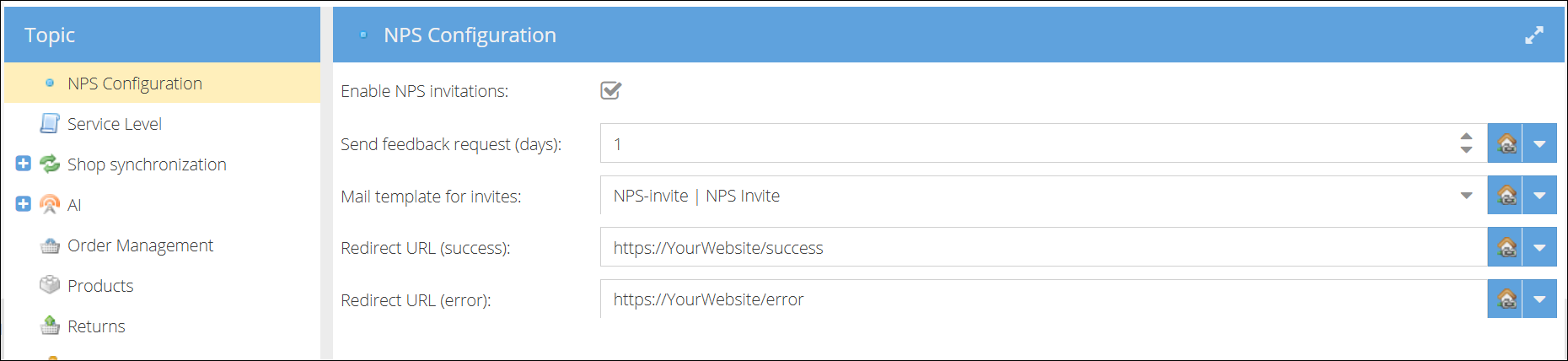
To activate and set up the NPS system for a shop, follow these steps:
- Log in to your ShopCtrl account as a user with the shop admin role.
- Navigate to Configuration > Shops.
- Select the desired shop and click Edit.
- From the topic menu, go to NPS Configuration section.
- Enable the setting for NPS Invitations.
- Set the Feedback Delay: In the "Send feedback request (days)" field, enter the number of days to wait after a ticket is closed before sending the feedback email. The count starts from the ticket's close date.
- Select an Email Template: From the dropdown, choose a general-type mail template to use for the invitation emails.
- Configure Redirect URLs (Required):
- Success Redirect URL: Enter the full URL of the "Thank You" page hosted in your environment, where customers land after successfully submitting a rating.
- Error Redirect URL: Enter the full URL of the error page hosted in your environment, where customers are directed if the submission fails, or rate was already acepted.
- Click Save or Save & Close to apply all changes. The system will automatically begin processing eligible tickets.
Merge Fields for Rating Links
To create functional rating buttons in your email template, use the following merge fields for scores 1-10:
| Rating Score | Merge Field |
|---|---|
| Score 1 | $$Ticket.RateUrl01$$ |
| Score 2 | $$Ticket.RateUrl02$$ |
| Score 3 | $$Ticket.RateUrl03$$ |
| Score 4 | $$Ticket.RateUrl04$$ |
| Score 5 | $$Ticket.RateUrl05$$ |
| Score 6 | $$Ticket.RateUrl06$$ |
| Score 7 | $$Ticket.RateUrl07$$ |
| Score 8 | $$Ticket.RateUrl08$$ |
| Score 9 | $$Ticket.RateUrl09$$ |
| Score 10 | $$Ticket.RateUrl10$$ |
These fields will automatically be replaced with unique API links for each rating option when the email is sent.
Handling Rating Submission Errors
When customers submit an NPS rating, they are redirected to your configured Error Redirect URL if the submission fails. The redirect URL includes query parameters to help you identify and handle the error appropriately on your page.
URL Parameters Passed on Error
| Parameter | Description | Example Value |
|---|---|---|
| TicketId | The ID of the ticket being rated. | TicketId=5436 |
| Token | The security token for the rating request. | Token=-53439989 |
| Rating | The rating score (1-10) the customer attempted to submit. | Rating=10 |
| Message | A URL-encoded error message explaining the failure reason. | Message=The+ticket+is+already+rated |
Common Error Messages and Causes
| Error Message (Message parameter) | Likely Cause | Suggested User Communication |
|---|---|---|
| The token is invalid | The rating link is expired, malformed, or has already been used. | "This feedback link has expired or is invalid." |
| The ticket is already rated | The customer has already submitted feedback for this support ticket. | "Thank you! We have already received your feedback for this request." |
| The rating value is invalid | A technical error; the rating parameter was outside the valid 1-10 range. | "We encountered a technical issue. Please try again." |
How the Automated System Works
Once configured, a background scheduled task runs every hour to automate the entire process:
Ticket Scan: The system scans for tickets closed more than [X] days ago (per your setting), but only checks tickets that have been closed within the last 7 days.
Eligibility Check: For each ticket, it confirms that:
- A customer with a valid email address is linked to the ticket.
- At least one email response was sent to the customer during the support conversation.
Invitation Dispatch: An NPS invitation email is sent to the customer using your selected template.
Data Collection: Customer ratings (1-10) are recorded at the ticket level. The mail is linked to the ticket, so you can view it.
Report Generation: NPS reports are generated based on the aggregated ratings per ticket, accessible via the ShopCtrl reporting module.