Purchase Price Import (with Tiers)
While ShopCtrl supports standard product imports, this specific profile is designed for managing Supplier Purchase Prices and Volume-Based Tier Pricing in bulk.
Unlike the more complex "Supplier Product Import," this method is designed for quick, manual price adjustments.
Key Requirement: To use this profile, your Excel file must explicitly include the ShopCtrl Product Code (SKU). While the advanced import can match products using only the Supplier SKU, this simplified pricing import requires the internal ShopCtrl Product Code to ensure prices are mapped to the correct product record.
1. Create an Import/Export Profile
Profile could be created from the Product > Product export/import profiles. Profile can be used accross multiple suppliers.
- Log in as a Shopowner Admin.
- Navigate to Product Management > Product export/import profiles.
- Click Add to create a new profile.
- Select Profile Type: Product Purchase Price.
- Enter a Profile Name (e.g., "Supplier Price Update").
- Configure the file settings:
- Header rows: Default is
1. - Encoding: Choose your file encoding (usually UTF-8).
- Field Separator: Default is
;.
- Header rows: Default is
- By default all of the properties are included.
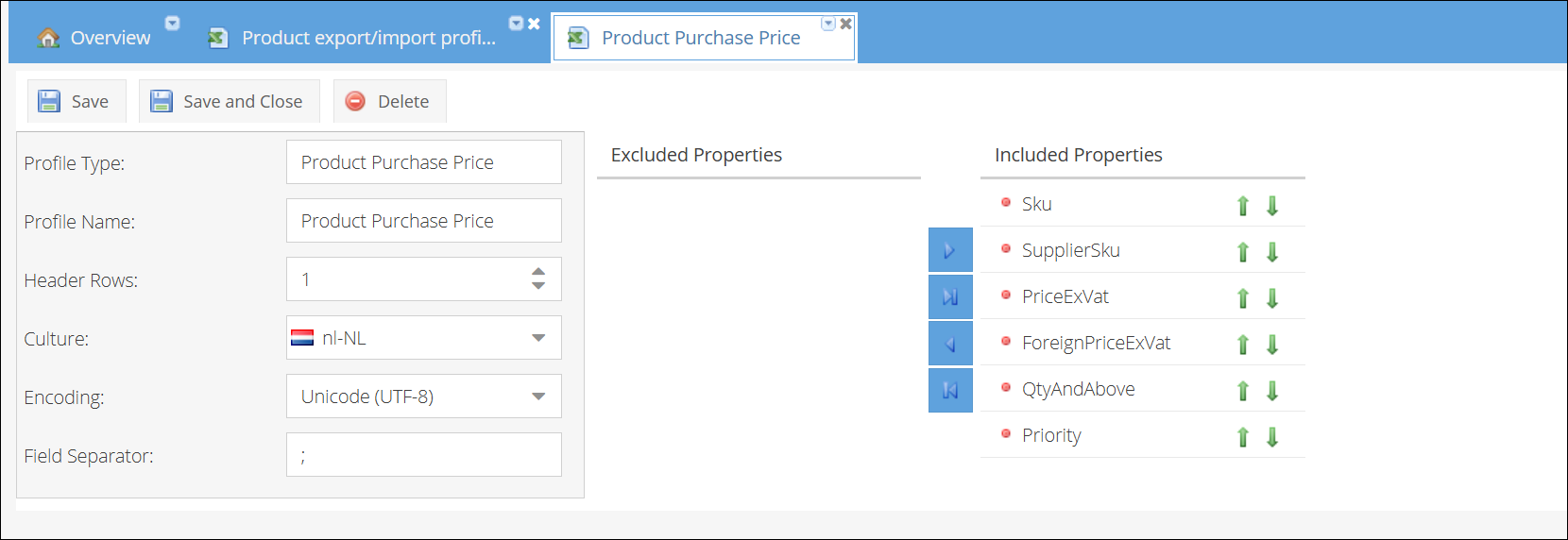
- Mapping Fields: You can rearrange these fields to match your spreadsheet:
Sku(Internal ShopCtrl SKU)SupplierSkuPriceExVatForeignPriceExVatQtyAndAbove(Use for tier pricing)Priority
- Click Save.
2. Create file for import
The easiest way to start is by exporting your current data to use as a template.
How to Export Existing Prices
- Go to the Products menu.
- Open the Export tab and select your new Purchase Prices profile.
- Select Export All or apply filters first to export a specific subset. (Note: "Export Selection" via checkboxes is not currently supported for this profile type).
- The file will generate in the background.
Formatting Tier Prices
To set up tier pricing (e.g., a lower price when buying in bulk), create a separate row for each quantity break:
| Sku(Product Code) | SupplierSku | PriceExVat | ForeignPriceExVat | QtyAndAbove | Note |
|---|---|---|---|---|---|
| 001A | 001A-ns | 15.00 | - | Regular price | |
| 001A | 001A-ns | 14.00 | - | 10 | Price for 10+ units |
| 001A | 001A-ns | 13.00 | - | 100 | Price for 100+ units |
Only provide either PriceExVat or ForeignPriceExVat. The empty field is calculated automatically based on current exchange rates.
Always include the "Regular" price (where QtyAndAbove is empty) alongside your tier prices.
3. Upload & Update Prices
-
Go to Product Management > Product Import.
-
Select your Product Purchase Price profile from the dropdown.
-
Select the Supplier you are updating.
-
Upload your file.
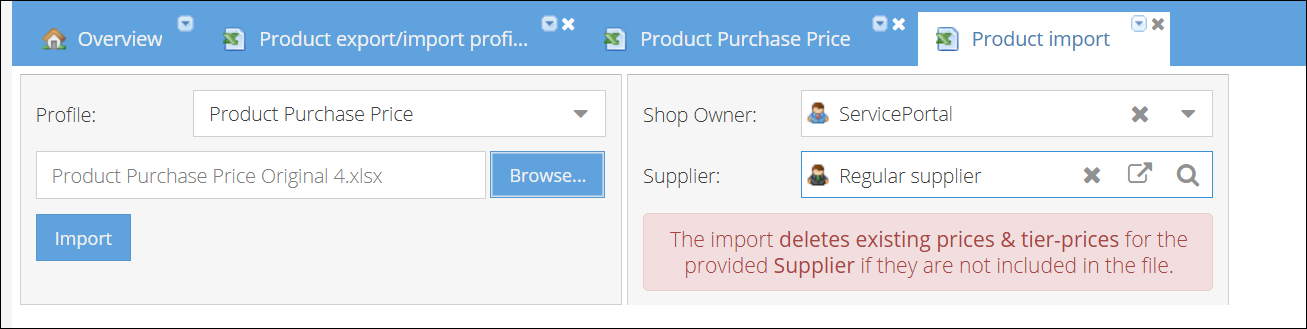
The import deletes existing prices & tier-prices for the provided Supplier if they are not included in the file.
Verifying Your Results
Once the upload is finished, you can verify that the prices and tiers were applied correctly in three ways:
-
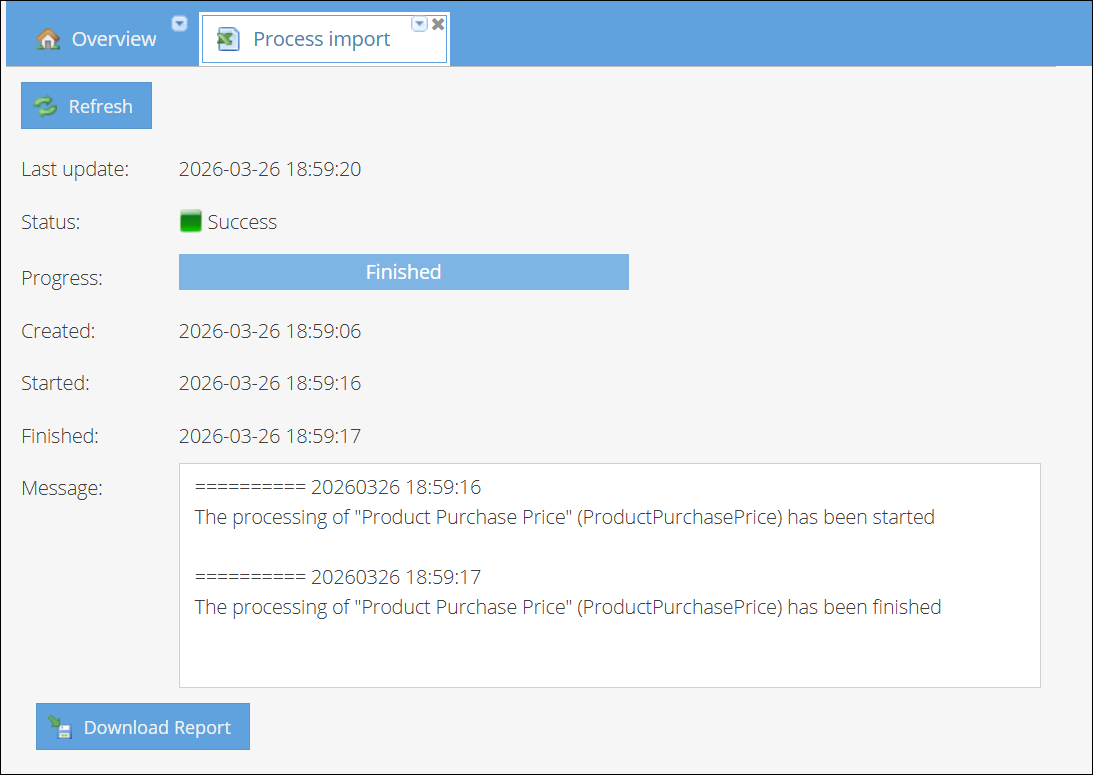
Download Report: You can download the Results Excel file from here to see if any rows failed or to view a summary of the processed data.
-
Product Export: Use the same Manual Price & Tier Update profile to export the prices for that supplier again. This gives you a "clean" view of exactly what is currently stored in the system.
-
Product View: Open a specific product from the Products grid and check the Suppliers tab to see the updated price list and tier structure.